by R.I. Pienaar | Aug 19, 2009 | Code, Front Page, Usefull Things
We often have people asking ‘will this work…’ or ‘how do I…’ type questions on IRC, usually because it seems like such a big deal to upload a bit of code to your master just to test.
Here are a quick few tips and tricks for testing out bits of puppet code to get the feel for things, I’ll show you how to test code without using your puppetmaster or needing root, so it’s ideal for just playing around on your shell, exploring the language structure and syntax..
Getting more info
Most people know this one, but just running puppetd –test will highlight all the various steps puppet is taking, any actions its
performing etc in a nice colored display, handy to just do one-offs and see what is happening.
Testing small bits of code:
Often you’re not sure if you’ve got the right syntax, especially for case statements, selectors and such, or you just want to test out some scenarios, you can’t just dump the stuff into your master because it might not even compile.
Puppet comes with a executable called ‘puppet’ that’s perfect for this task, simply puppet some manifest into a file called test.pp and run it:
puppet --debug --verbose test.pp |
puppet --debug --verbose test.pp
This will run through your code in test.pp and execute it. You should be aware that you couldn’t fetch files from the master in this case since it’s purely local but see the File types reference for a explanation of how the behavior changes – you can still copy files, just not from the master.
You can do anything that puppet code can do, make classes, do defines, make sub classes, install packages, this is great for testing out small concepts in a safe way. Everything you see in this article was done in my shell like this.
What is the value of a variable?
You’ve set a variable in some class but you’re not sure if it’s set to what you’re expecting, maybe you don’t know the scoping rules just yet or you just want to log some state back to the node or master log.
In a usual scripting language you’d add some debug prints, puppet is the same. You can print simple values in the master log by doing this in your manifest:
notice("The value is: ${yourvar}") |
notice("The value is: ${yourvar}")
Now when you run your node you should see this being printed to the syslog (by default) on your master.
To log something to your client, do this:
notify{"The value is: ${yourvar}": } |
notify{"The value is: ${yourvar}": }
Now your puppet logs – syslog usually – will show lines on the client or you could just do puppetd –test on the client to see it run and see your debug bits.
What is in an array?
You’ve made an array, maybe from some external function, you want to know what is in it? This really is an extension to the above hint that would print garbage when passed arrays.
Building on the example above and the fact that puppet loops using resources, lets make a simple defined type that prints each member of an array out to either the master or the client (use the technique above to choose)
$arr = [1, 2, 3]

define print() {
   notice("The value is: '${name}'")
}

print{$arr: } |
$arr = [1, 2, 3]
define print() {
notice("The value is: '${name}'")
}
print{$arr: }
This will print one line for each member in the array – or just one if $arr isn’t an array at all.
$ puppet test.pp
notice: Scope(Print[1]): The value is: '1'
notice: Scope(Print[3]): The value is: '3'
notice: Scope(Print[2]): The value is: '2' |
$ puppet test.pp
notice: Scope(Print[1]): The value is: '1'
notice: Scope(Print[3]): The value is: '3'
notice: Scope(Print[2]): The value is: '2'
Writing shell scripts with puppet?
Puppet’s a great little language, you might even want to replace some general shell scripts with puppet manifest code, here’s a simple hello world:
#!/usr/bin/puppet

notice("Hello world from puppet!")
notice("This is the host ${fqdn}") |
#!/usr/bin/puppet
notice("Hello world from puppet!")
notice("This is the host ${fqdn}")
If we run this we get the predictable output:
$ ./test.pp
notice: Scope(Class[main]): Hello world from puppet!
notice: Scope(Class[main]): This is the host your.box.com |
$ ./test.pp
notice: Scope(Class[main]): Hello world from puppet!
notice: Scope(Class[main]): This is the host your.box.com
And note that you can access facts and everything from within this shell script language, really nifty!
Did I get the syntax right?
If I introduce a deliberate error in the code above – remove the last ” – it would blow up, you can test puppet syntax using puppet itself:
$ puppet --parseonly test.pp
err: Could not parse for environment production: Unclosed quote after '' in 'Hello world from puppet!)
' at /home/rip/test.pp:1 |
$ puppet --parseonly test.pp
err: Could not parse for environment production: Unclosed quote after '' in 'Hello world from puppet!)
' at /home/rip/test.pp:1
You can combine this with a pre-commit hook on your SCM to make sure you don’t check in bogus stuff.
How should I specify the package version? or user properties?
Often you’ve added a package, but not 100% sure how to pass the version string to ensure => or you’re not sure how to specify password hashes etc, puppet comes with something called ralsh that can interrogate a running system, some samples below:
% ralsh package httpd
package { 'httpd':
    ensure => '2.2.3-22.el5.centos.2'
}

% ralsh package httpd.i386
package { 'httpd.i386':
   ensure => '2.2.3-22.el5.centos.2'
}

% ralsh user apache
user { 'apache':
   password => '!!',
   uid => '48',
   comment => 'Apache',
   home => '/var/www',
   gid => '48',
   ensure => 'present',
   shell => '/sbin/nologin'
} |
% ralsh package httpd
package { 'httpd':
ensure => '2.2.3-22.el5.centos.2'
}
% ralsh package httpd.i386
package { 'httpd.i386':
ensure => '2.2.3-22.el5.centos.2'
}
% ralsh user apache
user { 'apache':
password => '!!',
uid => '48',
comment => 'Apache',
home => '/var/www',
gid => '48',
ensure => 'present',
shell => '/sbin/nologin'
}
Note in the 2nd case I ran it as root, puppet needs to be able to read shadow and so forth. The code it’s outputting is valid puppet code that you can put in manifests.
Will Puppet destroy my machine?
Maybe you’re just getting ready to run puppet on a host for the first time or you’re testing some new code and you want to be sure nothing terrible will happen, puppetd has a no-op option to make it just print what will happen, just run puppetd –test –noop
What files etc are being managed by puppet?
See my previous post for a script that can tell you what puppet is managing on your machine, note this does not yet work on 0.25.x branch of code.
Is my config changes taking effect?
Often people make puppet.conf changes and it just isn’t working, perhaps they put them in the wrong [section] in the config file, a simple way to test is to run puppetd –genconfig this will dump all the active configuration options.
Be careful though don’t just dump this file over your puppet.conf thinking you’ll have a nice commented file, this wont work as the option for genconfig will be set to true in the file and you’ll end up with a broken configuration. In general I recommend keeping puppet.conf simple and short only showing the things you’re changing away from defaults, that makes it much easier to see what differs from standard behavior when asking for help.
Getting further help
Puppet has a irc channel #puppet on freenode, we try and be helpful and welcoming to newcomers, pop by if you have questions.
As always you need to have these wiki pages bookmarked and they should be your daily companions:
by lsd | Jul 4, 2009 | Usefull Things
<historylesson>
Things aren’t how they used to be.
It seems I spent most of the ’90s and the early ’00s (damn you Y2K!) building my own kernels. The preposterous thought of sticking with the default kernel of your chosen distribution simply never crossed a lot of minds. For one thing, your hardware was pretty much guaranteed not to work out of the box, and RAM was expensive! It was in your best interests to tweak the hell out of the settings to get the best performance out of your hardware, and to avoid compiling in any unnecessary code or modules, to reduce your system memory footprint.
This involved much learning of new terminology and options, many failures and unbootable systems, and many trips to the local steakhouse or coffee shop, since each compile would take hours on your trusty 80386 or 80486.
Things aren’t the way they used to be, thank goodness. Chances are, the vanilla kernel you received with your latest Masturbating Monkey Ubuntu 13.0 installation performs well and works with most of your hardware. You don’t need to roll your own kernel. In fact, you should probably avoid it, especially if you’re thinking of installing servers in a live production environment.
Well, usually. Sometimes, you really need to tweak some code to get the feature or performance you were counting on, or try out some awesome new patch which might just revolutionise the systems you are developing.
</historylesson>
I’m a sucker for Debian. I love dpkg and apt(-itude). The package manager is powerful and I enjoy using it. I like everything except building packages from source. It’s rarely as straightforward as it should be, and sometimes it’s incredibly difficult to obtain a package which installs the same way and into the same places with the same features as the upstream pre-built package that you’re supposedly building.
Building kernel packages is worse yet. Far worse. When rolling your own kernel, especially if you don’t want the package manager to install the latest version over your own, you are forced to play ball with apt, and you must play by apt’s rules.
I’ve tried a multitude of incantations of dpkg-buildpackage, debuild, make-kpkg, etc. All I want to be able to do is patch the kernel source, make some changes, append a custom version tag, and build a .deb which I can safely install, yet each HOWTO or set of instructions I tried failed to do this to my (misguided?) specifications. I had particularly nasty problems with the grub update post-inst scripts in all cases.
(more…)
by R.I. Pienaar | May 4, 2009 | Front Page, Usefull Things
I thought its high time I get to spend some time with IPv6 so I signed up for a static tunnel from sixxs.net, apart from taking some time it’s a fairly painless process to get going.
I chose a static tunnel since I am just 9ms from one of their brokers and my machine is up all the time anyway, they have some docs on how to get RedHat machines talking to them but it was not particularly accurate, this is what I did:
You’ll get a mail from them listing your details, something like this:
Tunnel Id          : T21201

PoP Name           : dedus01 (de.speedpartner [AS34225])

Your Location      : Gunzenhausen, de

SixXS IPv6         : 2a01:x:x:x::1/64

Your IPv6          : 2a01:x:x:x::2/64

SixXS IPv4         : 91.184.37.98

Tunnel Type        : Static (Proto-41)

Your IPv4 : 78.x.x.x |
Tunnel Id : T21201
PoP Name : dedus01 (de.speedpartner [AS34225])
Your Location : Gunzenhausen, de
SixXS IPv6 : 2a01:x:x:x::1/64
Your IPv6 : 2a01:x:x:x::2/64
SixXS IPv4 : 91.184.37.98
Tunnel Type : Static (Proto-41)
Your IPv4 : 78.x.x.x
Using this you can now configure your CentOS machine to bring the tunnel up, you need to edit these files:
/etc/sysconfig/network:
NETWORKING_IPV6=yes
IPV6_DEFAULTDEV=sit1 |
NETWORKING_IPV6=yes
IPV6_DEFAULTDEV=sit1
/etc/sysconfig/network-scripts/ifcfg-sit1
DEVICE=sit1
BOOTPROTO=none
ONBOOT=yes
IPV6INIT=yes
IPV6_TUNNELNAME=”sixxs”
IPV6TUNNELIPV4=”91.184.37.98″
IPV6TUNNELIPV4LOCAL=”78.x.x.x”
IPV6ADDR=”2a01:x:x:x::2/64″
IPV6_MTU=”1280″
TYPE=sit |
DEVICE=sit1
BOOTPROTO=none
ONBOOT=yes
IPV6INIT=yes
IPV6_TUNNELNAME=”sixxs”
IPV6TUNNELIPV4=”91.184.37.98″
IPV6TUNNELIPV4LOCAL=”78.x.x.x”
IPV6ADDR=”2a01:x:x:x::2/64″
IPV6_MTU=”1280″
TYPE=sit
Just replace the values from your email into the files above, once you have this in place reboot or restart your networking and you should see something like this:
sit1      Link encap:IPv6-in-IPv4
          inet6 addr: 2a01:x:x:x::2/64 Scope:Global
          inet6 addr: fe80::4e2f:c3c6/128 Scope:Link
          UP POINTOPOINT RUNNING NOARP  MTU:1480  Metric:1
          RX packets:9796 errors:0 dropped:0 overruns:0 frame:0
          TX packets:7301 errors:0 dropped:0 overruns:0 carrier:0
          collisions:0 txqueuelen:0
RX bytes:7181061 (6.8 MiB) TX bytes:1277642 (1.2 MiB) |
sit1 Link encap:IPv6-in-IPv4
inet6 addr: 2a01:x:x:x::2/64 Scope:Global
inet6 addr: fe80::4e2f:c3c6/128 Scope:Link
UP POINTOPOINT RUNNING NOARP MTU:1480 Metric:1
RX packets:9796 errors:0 dropped:0 overruns:0 frame:0
TX packets:7301 errors:0 dropped:0 overruns:0 carrier:0
collisions:0 txqueuelen:0
RX bytes:7181061 (6.8 MiB) TX bytes:1277642 (1.2 MiB)
% ping6 -c 3 -n noc.sixxs.net
PING noc.sixxs.net(2001:838:1:1:210:dcff:fe20:7c7c) 56 data bytes
64 bytes from 2001:838:1:1:210:dcff:fe20:7c7c: icmp_seq=0 ttl=57 time=20.2 ms
64 bytes from 2001:838:1:1:210:dcff:fe20:7c7c: icmp_seq=1 ttl=57 time=28.4 ms
64 bytes from 2001:838:1:1:210:dcff:fe20:7c7c: icmp_seq=2 ttl=57 time=20.1 ms
— noc.sixxs.net ping statistics —

3 packets transmitted, 3 received, 0% packet loss, time 2008ms

rtt min/avg/max/mdev = 20.181/22.934/28.406/3.869 ms, pipe 2 |
% ping6 -c 3 -n noc.sixxs.net
PING noc.sixxs.net(2001:838:1:1:210:dcff:fe20:7c7c) 56 data bytes
64 bytes from 2001:838:1:1:210:dcff:fe20:7c7c: icmp_seq=0 ttl=57 time=20.2 ms
64 bytes from 2001:838:1:1:210:dcff:fe20:7c7c: icmp_seq=1 ttl=57 time=28.4 ms
64 bytes from 2001:838:1:1:210:dcff:fe20:7c7c: icmp_seq=2 ttl=57 time=20.1 ms
— noc.sixxs.net ping statistics —
3 packets transmitted, 3 received, 0% packet loss, time 2008ms
rtt min/avg/max/mdev = 20.181/22.934/28.406/3.869 ms, pipe 2
Since this is a remote machine it took me some time to figure out how to get browsing going through it, but once I reconnected my SSH SOCKS tunnel it immediately became IPv6 aware and were happily routing me to sites like ipv6.google.com. To do this just run from your desktop:
Now set your firefox network.proxy.socks_remote_dns setting to true in about:config, and point your browser at localhost:1080 as a socks proxy, your SSH should now work as a perfectly effective ipv4-to-6 gateway. You can test it by browsing to either the sixxs.net homepage or ipv6.google.com – watch out for the special google logo.
by R.I. Pienaar | Apr 1, 2009 | Usefull Things
Today while giving my stats a quick glance I noticed a big jump in mail, can’t say if its Conflicker related, but the graph below speaks for itself:
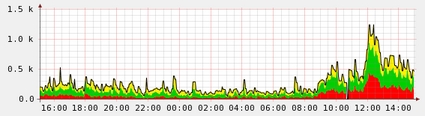
The bots are very clever and very close to real mail servers, they retry emails like they should, they don’t use bad HELO strings, their address lists seems better than most – they aren’t doing a lot of dictionary attacks etc.
But they still seem to not synchronize their SMTP too well, and they do pump out a lot of mail, I see about 100+ attempts from the same IP in batches meaning they fall foul of a lot of my statistical rate limiting etc.
I suspect after today there will be a lot of unhappy people who relied on greylisting for their defenses.
by R.I. Pienaar | Mar 23, 2009 | Usefull Things
We all know not to use the default mysql config, right?
Well I accidentally left a machine to defaults, then tried to load a massive dump file into it, a month later I finally killed the process loading the data. I gave up on it ages ago but it got to the point where it was some curiosity to see just how long it will take.
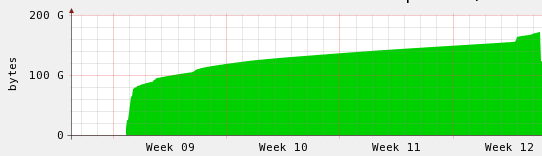 As you can see from above, it was pretty dismal, slowly creeping up over time – the big jump in the beginning is when I scp’d the data onto the machine. So after killing it I had another look at the config and noticed it was the default distributed one, tuned it to better use the memory for innodb buffers and got the result below.
 That’s just short of 2 days to load the data, still pretty crap, but so much better at the same time.
by R.I. Pienaar | Mar 21, 2009 | Usefull Things
A lifetime ago when I still gave a damn for FreeBSD I wrote about ipfw tables, I still really love ipfw’s simple syntax and really wish there was something similar for Linux rather than Human Error Guaranteed convoluted syntax mess that’s iptables.
Anyway, so in my case I have machines all over, one off VPS machines, dom0’s with a subnet routed to them and so forth. I often have rules that need to match on all my ips, things like allow data into my backup server, allow config retrieval from my puppetmaster etc. I do not want to maintain my total list of ips 10 times over so how to deal with it?
This is a good fit for ipfw tables, you create a table – essentially an object group like in a Cisco PIX or ASA – and then use it to match source IPs.
In the last week I’ve asked quite a few people how they’d do something similar with iptables but no-one seemed to know, I had people who were happy to maintain the same list many times. People who would use tools like sed to insert it into their rules and everything in between. I think I know a better way so I figured I’ll blog about it because it’s obviously something people do not just understand.
Iptables ofcourse use chains, and you can jump to and from chains all you want, this is very simple, so lets create a chain with all my IPs
-A my_ips -s 192.168.1.1 -m comment –comment “box1.com” -j ACCEPT
-A my_ips -s 192.168.2.1 -m comment –comment “box2.com” -j ACCEPT
-A my_ips -s 192.168.3.1 -m comment –comment “box3.com” -j ACCEPT
This creates a chain my_ips that just accepts all traffic from my IP addresses, now lets see how we’d allow all my ip addresses into my webserver?
-A INPUT -p tcp –dport 80 -m tcp -j my_ips
So this is something almost as good as a ipfw table, I can reuse it many times on many machines and my overall configuration is much more simple. It’s not quite as powerful as a table but for my needs it’s fine.
Combined with a tool like Puppet that manages your configurations you can ensure that this chain is installed on any machine that uses iptables, ready to be used and also trivial to update whenever you need too without having to worry about human error incurred from having to maintain many copies of essentially the same data.
In my environment when I update this table, I check it into SVN and within 30 minutes every machine in my control has the new table and they’ve all reloaded their iptables rules to activate it. Testing is very easy since puppet allows you to use environments similar to Rails has and so if I really need to I can easily test firewall changes on a small contained set of machines, distributed object group management with version control and everything rolled into one.

